> For the complete documentation index, see [llms.txt](https://docs.nifty.ai/llms.txt). Markdown versions of documentation pages are available by appending `.md` to page URLs; this page is available as [Markdown](https://docs.nifty.ai/crosslisting/drafts-and-scheduling.md).
# Drafts and Scheduling
Not ready to publish yet? Save your work as a draft and come back later, or schedule drafts to go live at a specific time.
### Where to find it
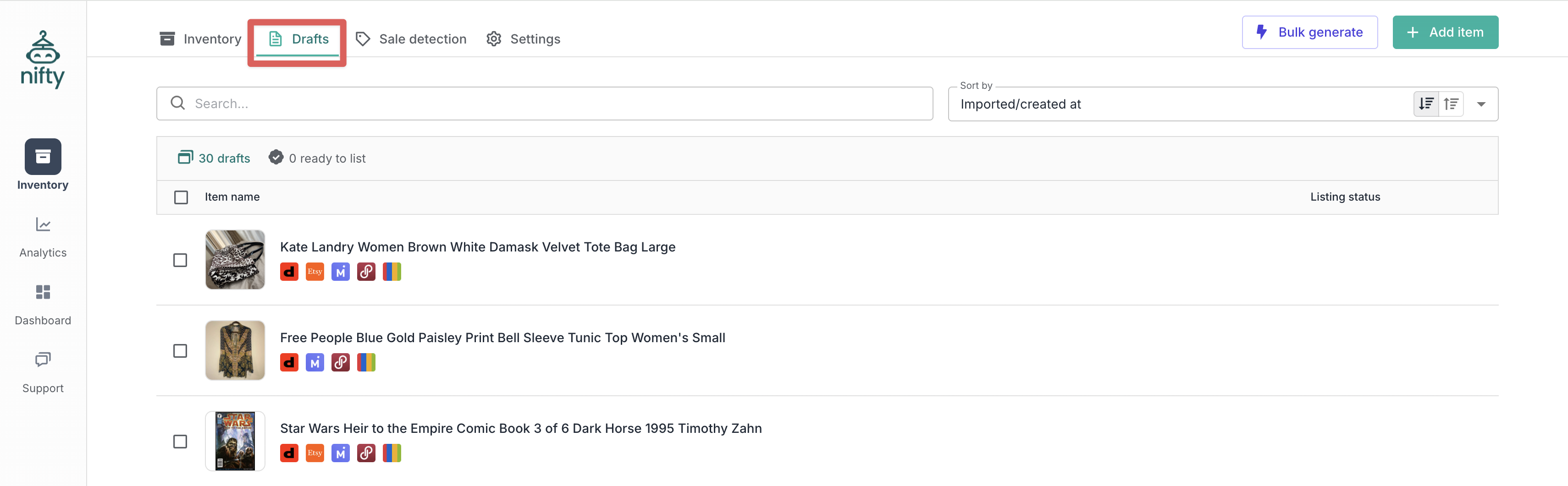
Go to [**Drafts**](https://app.nifty.ai/inventory/drafts) (in the [**Inventory Manager**](/inventory-management/inventory-manager.md)).
### How it works
Drafts and scheduled drafts give you flexible control over when your listings go live:
* A **draft** is an in-progress listing in Nifty that hasn’t been published to a marketplace yet.
* **Ready to list** is a toggle that marks a draft as complete and eligible for bulk publishing and scheduling.
* A **scheduled listing** is a ready draft with a future publish time.
You can move drafts through this lifecycle at your own pace: create drafts, mark them as ready, then publish immediately or schedule them for later.
{% hint style="info" %}
**Note:** There’s no limit on how many drafts you can have in Nifty.
{% endhint %}
### Drafts
#### Saving a draft
Any listing you're creating can be saved as a draft:
1. Fill in whatever information you have.
2. Click **Save as draft**.
3. The draft is saved to your **Drafts**.
Drafts don't need to be complete — all that's required is one photo, and you can fill in the rest later.
#### Working with drafts
From within an individual draft, you can:
* **Update:** Save your progress.
* **Delete:** Remove the draft permanently.
* **Navigate:** Use the dropdown or arrow buttons to move between drafts.
* **Mark as ready:** Confirm the draft is complete.
From the **Drafts** page, you can:
* **Edit:** Click a draft title to continue working.
* **Delete:** Remove the draft permanently.
* **Publish/Schedule:** Select multiple drafts and post immediately or set a future publish time.
#### What drafts are good for
* **Bulk generation:** Our [**Bulk Generate**](/crosslisting/ai-listing-generator.md) feature allows you to submit up to 30 sets of photos to the AI, and the results are saved as drafts.
* **Batch photo sessions:** Upload photos for multiple items, save as drafts, add details later.
* **Incomplete information:** Save now, research pricing or details later.
* **Review before posting:** Create drafts, then review for quality before publishing.
### Scheduled listings
#### How to schedule
1. Complete your draft and toggle **Ready to list** (top right on desktop, bottom left on mobile).
2. Go back to the **Drafts** page.
3. Use the filter bar to narrow down to **Ready to list** drafts.
4. Select multiple drafts and click **Publish** in the **Bulk action bar** at the bottom.
5. Select the date and time you want the listing to go live (or now).
6. Confirm.
The draft will automatically publish at the selected time.
#### Managing scheduled listings
Once a draft is scheduled, it cannot be edited unless the schedule is canceled. To cancel:
* From the **Drafts** page: open the **Draft menu** (three dots on far right) and click **Unschedule**.
* Or open the draft and click **Unschedule**.
#### Why schedule listings
* **Optimal timing:** Post when buyers are most active.
* **Consistent posting:** Spread new listings throughout the week.
* **Batch workflow:** Prepare everything on Sunday, schedule throughout the week.
### Limitations
| Limitation | Details |
| ------------------------------ | ---------------------------------------------------------- |
| Import drafts from other tools | There is no way to bulk import drafts from other services. |
---
# Agent Instructions
This documentation is published with GitBook. GitBook is the documentation platform designed so that both humans and AI agents can read, navigate, and reason over technical content effectively. Learn more at gitbook.com.
## Querying This Documentation
If you need additional information that is not directly available in this page, you can query the documentation dynamically by asking a question.
Perform an HTTP GET request on the current page URL with the `ask` query parameter, and the optional `goal` query parameter:
```
GET https://docs.nifty.ai/crosslisting/drafts-and-scheduling.md?ask=&goal=
```
`ask` is the immediate question: it should be specific, self-contained, and written in natural language.
`goal` is optional and describes the broader end goal you are ultimately trying to accomplish on behalf of the user. GitBook uses it to tailor the answer towards what is most useful for that goal.
The response will contain a direct answer to the question and relevant excerpts and sources from the documentation.
Use this mechanism when the answer is not explicitly present in the current page, you need clarification or additional context, or you want to retrieve related documentation sections.
.png?alt=media)
.png?alt=media)
.png?alt=media)