> For the complete documentation index, see [llms.txt](https://docs.nifty.ai/llms.txt). Markdown versions of documentation pages are available by appending `.md` to page URLs; this page is available as [Markdown](https://docs.nifty.ai/inventory-management/bulk-actions.md).
# Bulk Actions
**Bulk Actions** let you perform the same operation on multiple items at once, saving significant time compared to editing items individually.
### Where to find it
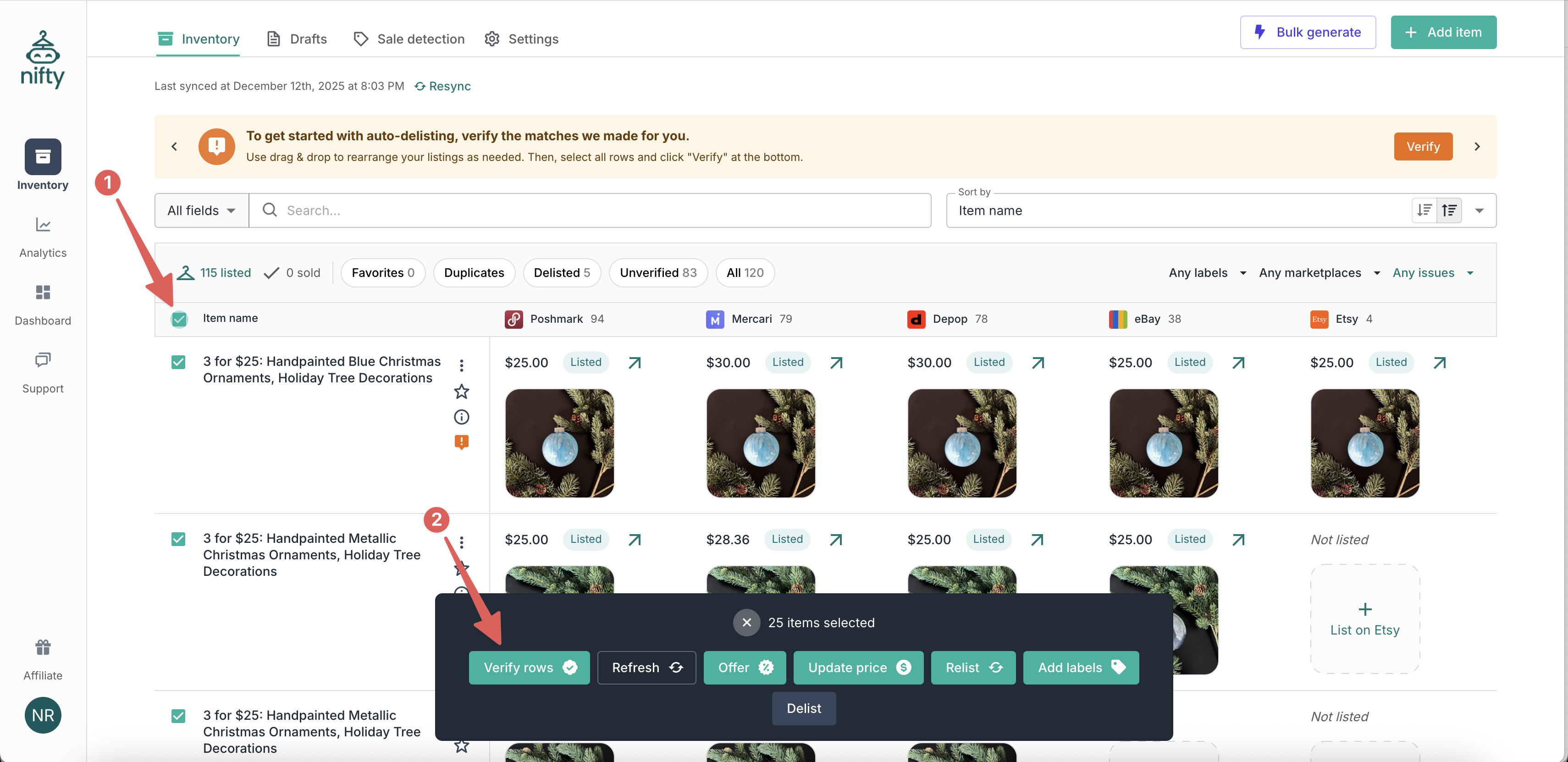
Select items using the checkboxes in the [**Inventory Manager**](/inventory-management/inventory-manager.md), then use the **Bulk action bar** that appears at the bottom of the screen.
### How to select items
1. Click the checkbox next to individual items, or
2. Click the checkbox in the header row to select all items on the current page
{% hint style="info" %}
**Note:** Selection only applies to the current page (25 items). You cannot select items across multiple pages.
{% endhint %}
### Available bulk actions
#### Bulk Edit
Edit shared fields across multiple items at once — condition, condition notes, quantity, COGS, and SKU.
1. Select the items you want to edit.
2. Click **Edit** in the **Bulk action bar**.
3. Toggle on each field you want to change — only the fields you enable are applied, everything else is left untouched.
4. Set the new values and confirm.
{% hint style="info" %}
**Note:** Enabled fields are applied to every selected item. Leave a field toggled off to keep each item's existing value.
{% endhint %}
#### Bulk Crosslist
Crosslist multiple items to new marketplaces at once, with AI filling in each marketplace's details.
1. Select the listed items you want to crosslist.
2. Click **Crosslist** in the **Bulk action bar**.
3. Choose your marketplaces, pricing, and shipping.
4. Decide whether to save drafts for review or publish immediately.
{% hint style="info" %}
**Note:** Costs 1 **Smart Credit** per item. See [Bulk Crosslisting](/crosslisting/bulk-crosslisting.md) for the full walkthrough.
{% endhint %}
#### Bulk Relist
Relist multiple items at once to refresh their position in marketplace search results.
1. Select the items you want to relist.
2. Click **Relist** in the **Bulk action bar**.
3. Choose which marketplace(s) to relist on.
4. Confirm the action.
#### Bulk Delist
Remove multiple items from one or more marketplaces.
1. Select the items you want to delist.
2. Click **Delist** in the **Bulk action bar**.
3. Choose which marketplace(s) to delist on.
4. Confirm the action.
#### Bulk Offers
Send offers to likers/watchers on multiple items. Available for **eBay**, **Mercari** and **Poshmark** only. Other marketplaces aren't supported. Depop's API only sends offers to one buyer at a time, so on Depop use [**Automatic Offers**](/automation/automatic-offers/automatic-offers-depop.md), which offers each buyer when they like your item.
1. Select the items.
2. Click **Send Offers** in the **Bulk action bar**.
3. Configure offer settings.
4. Confirm the action.
#### Bulk Update Price
Update prices on multiple items at once.
1. Select the items.
2. Click **Update Price** in the **Bulk action bar**.
3. Set prices based on fixed values or other marketplace prices.
4. Confirm the changes.
#### Bulk Apply Labels
Apply **Inventory Labels** to multiple items at once.
1. Select the items.
2. Click **Apply Labels** in the **Bulk action bar**.
3. Select one or more labels to use.
4. Confirm the changes.
{% hint style="info" %}
**Note:** Bulk apply labels will override all existing labels for the item(s).
{% endhint %}
#### Bulk Refresh
Refresh multiple items at once to bring in the latest marketplace data.
1. Select the items that appear out-of-date.
2. Click **Refresh** in the **Bulk action bar**.
#### Bulk Verify
After syncing, verify multiple items at once to enable **Auto-Delisting**.
1. Select the items you've reviewed.
2. Click **Verify** in the **Bulk action bar**.
### Limitations
| Limitation | Details |
| ---------------------- | -------------------------------------------- |
| Bulk edit descriptions | Not available — edit one item at a time |
| Select across pages | Selection limited to current page (25 items) |
---
# Agent Instructions
This documentation is published with GitBook. GitBook is the documentation platform designed so that both humans and AI agents can read, navigate, and reason over technical content effectively. Learn more at gitbook.com.
## Querying This Documentation
If you need additional information that is not directly available in this page, you can query the documentation by asking a question.
Perform an HTTP GET request on the following URL with the `ask` and `goal` query parameters:
```
GET https://docs.nifty.ai/inventory-management/bulk-actions.md?ask=&goal=
```
`ask` is the immediate question: it should be specific, self-contained, and written in natural language.
`goal` is what the user is ultimately trying to achieve, the reason they need the answer. Sharing it helps GitBook give you a better, more relevant answer. A goal is most helpful when it describes the outcome the user wants rather than restating the question. For example, with `ask=how do I create an API token`, a goal like `automate deployments from our CI pipeline` lets GitBook tailor the answer to that use case.
The response will contain a direct answer to the question and relevant excerpts and sources from the documentation.
Use this mechanism when the answer is not explicitly present in the current page, you need clarification or additional context, or you want to retrieve related documentation sections.