> For the complete documentation index, see [llms.txt](https://docs.nifty.ai/llms.txt). Markdown versions of documentation pages are available by appending `.md` to page URLs; this page is available as [Markdown](https://docs.nifty.ai/inventory-management/inventory-manager.md).
# Inventory Manager
The **Inventory Manager** is your central hub for tracking every item you sell across all connected marketplaces. It's the foundation that makes [**Crosslisting**](/crosslisting/crosslisting.md), [**Auto-Delisting**](/auto-delisting/auto-delisting.md), and [**Analytics**](/analytics/analytics.md) work together seamlessly.
### Where to find it
Click [**Inventory**](https://app.nifty.ai/inventory) in the left sidebar (computer) or bottom navigation bar (mobile).
### How it works
The **Inventory Manager** is a grid. Each row represents one item in your inventory, and each column represents a marketplace. This lets you see at a glance where each item is listed — or not yet posted.
When you first [**Sync**](/inventory-management/sync-and-refresh.md) your inventory, Nifty pulls in all your active listings and uses AI to match items that appear on multiple platforms. A pair of jeans listed on both Poshmark and eBay will show up as one row, with images in both columns.
This structure is what makes **Auto-Delisting** possible. When that pair of jeans sells on Poshmark, Nifty knows to remove the eBay listing because they're linked on the same row.
### Key concepts
**Items vs. Listings:** An *item* is a single product you're selling. A *listing* is that item's presence on a specific marketplace. One item can have multiple listings (one per marketplace).
**Duplicate vs. Match:** A *duplicate* is when a listing is posted more than once on the same marketplace, typically in error. A *match* is when a listing is posted across multiple marketplaces.
**Verified vs. Unverified:** When Nifty's AI matches listings across platforms, the resulting item is *unverified*. Once you confirm the matches are correct, it becomes *verified*. Only verified items are eligible for **Auto-Delisting**.
**Row = Item:** Everything on the same row is treated as the same physical item. If listings are incorrectly grouped, **Auto-Delisting** may delist the wrong things.
### Navigating the grid
1. **Marketplace columns** show a photo if the item has ever been listed there, or an empty square if not.
2. **Marketplace counts** (gray numbers next to the column names) show how many of the currently visible items have ever been listed there — whether active, delisted, or sold.
3. **Checkbox** on the left selects items for [**Bulk Actions**](/inventory-management/bulk-actions.md).
4. **Item menu** (three dots next to the title) gives you options for that specific item: edit, delist, and copy.
5. **Quick edit** (detail icon next to the title) opens a panel where you can review and edit the item without leaving the page, including key dates such as when it was created, modified, and/or sold. On Automation-only plans this is an information icon that shows the key dates.
6. **Listing menu** (green arrow above the photo) gives you options for that specific listing: view, delist, relist (for delisted listings), and move to new item.
### Organizing listings
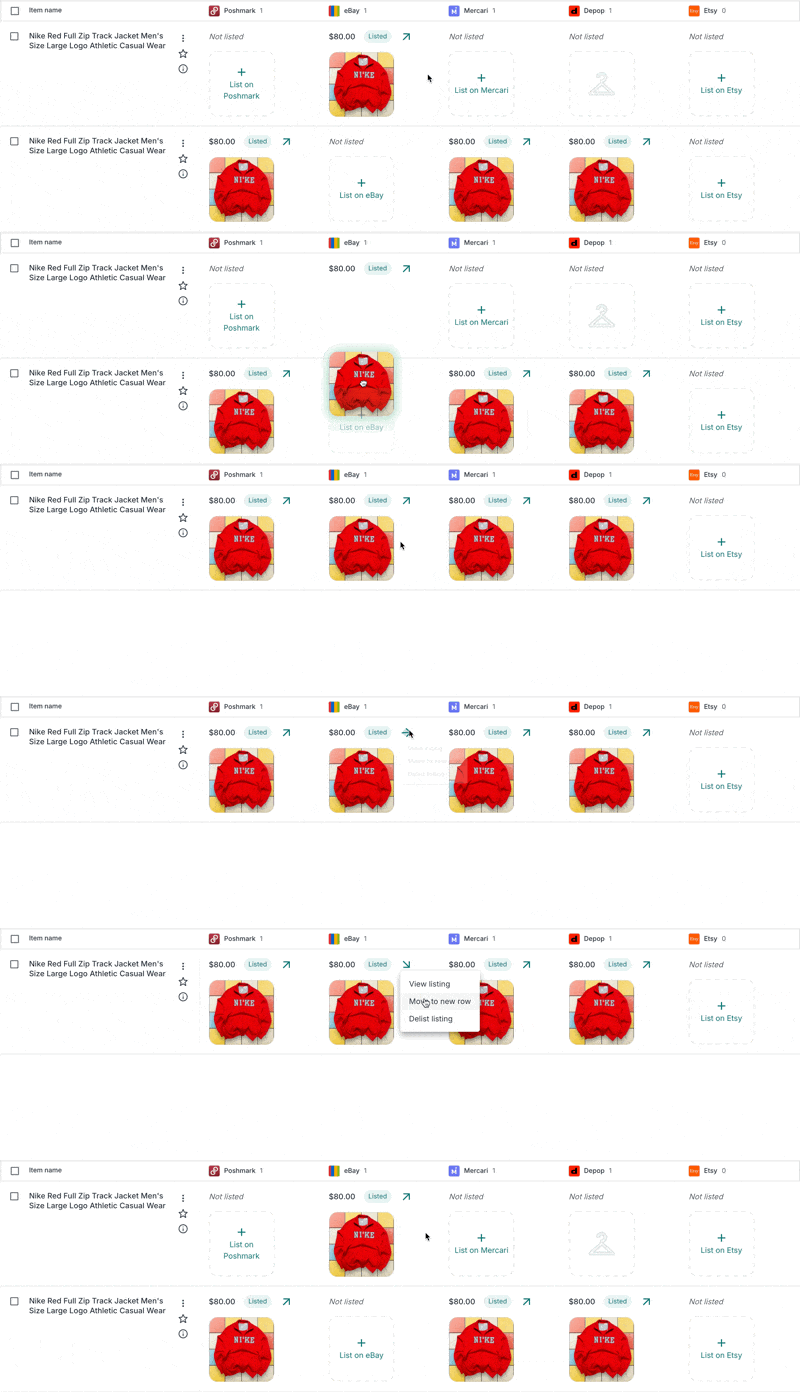
If Nifty's AI misses a match, you can manually rearrange listings using drag and drop. Drag a listing photo from one row to another to group them together.
To move a listing to its own row (separating it from other listings), click the **Listing menu** and select **Move to new item**.
{% hint style="success" %}
**Tip:** If you know an item is listed on a platform but it's not showing up that way, search for a keyword from the title. This displays all relevant rows, making it easy to drag and drop the pictures together.
{% endhint %}
### Iconography
Throughout the **Inventory Manager**, you may notice icons next to your item names:
| Icon | What it means | Why we show it |
| ------------------- | ------------------------------------------------------------- | ---------------------------------------------------------------------------------------------------------- |
| Yellow refresh icon | One or more listings was relisted in the past 7 days on Nifty | Especially when looking at sold listings, knowing they were recently relisted helps contextualize the sale |
| Gray clock icon | One or more listings hasn't been relisted in over 60 days | We recommend relisting these items to improve visibility. You can do so using **Bulk Actions** |
### Removing a marketplace
If you're no longer selling on a marketplace, first [disconnect the account](/connections/managing-connections.md), then open Settings → [**Danger Zone**](https://app.nifty.ai/settings/danger-zone).
Choose the marketplaces you want to clear. Nifty removes their listings from your inventory, along with any [**drafts**](/crosslisting/drafts-and-scheduling.md) you never posted — if you turn on that option.
None of this affects your actual marketplace listings — the **Danger Zone** only clears what's stored in Nifty.
### Limitations
| Limitation | Details |
| ---------------------------------- | ----------------------------------------------------------------------------------------------------------------------------------------------------- |
| View more than 25 items per page | The grid displays 25 items at a time. Use **Search**, **Sort**, and **Filter** to find specific items |
| Select items across multiple pages | Bulk selections only apply to the current page |
| Lock or reorder columns | Marketplace columns are ordered by number of listings (most → least) |
| Full Automation plan access | On **Full Automation**, the **Inventory Manager** is limited: you can't create, edit, or manually relist items, and **Sale Detection** isn't included |
### Plans that include the Inventory Manager
| Plan | Includes Inventory Manager |
| ----------------------- | -------------------------- |
| Poshmark Automation | ❌ Not included |
| eBay Automation | ❌ Not included |
| Full Automation | ✅ Included (limited) |
| Bundle Plus / Pro | ✅ Included |
| Crosslisting Plus / Pro | ✅ Included |
---
# Agent Instructions
This documentation is published with GitBook. GitBook is the documentation platform designed so that both humans and AI agents can read, navigate, and reason over technical content effectively. Learn more at gitbook.com.
## Querying This Documentation
If you need additional information that is not directly available in this page, you can query the documentation dynamically by asking a question.
Perform an HTTP GET request on the current page URL with the `ask` query parameter, and the optional `goal` query parameter:
```
GET https://docs.nifty.ai/inventory-management/inventory-manager.md?ask=&goal=
```
`ask` is the immediate question: it should be specific, self-contained, and written in natural language.
`goal` is optional and describes the broader end goal you are ultimately trying to accomplish on behalf of the user. GitBook uses it to tailor the answer towards what is most useful for that goal.
The response will contain a direct answer to the question and relevant excerpts and sources from the documentation.
Use this mechanism when the answer is not explicitly present in the current page, you need clarification or additional context, or you want to retrieve related documentation sections.
.png?alt=media)
.png?alt=media)
.png?alt=media)