> For the complete documentation index, see [llms.txt](https://docs.nifty.ai/llms.txt). Markdown versions of documentation pages are available by appending `.md` to page URLs; this page is available as [Markdown](https://docs.nifty.ai/crosslisting/list-on-marketplace.md).
# List on Marketplace
Use **List on Marketplace** to take an item that’s already listed on one marketplace and post it to additional marketplaces without re-entering all the details.
### Where to find it
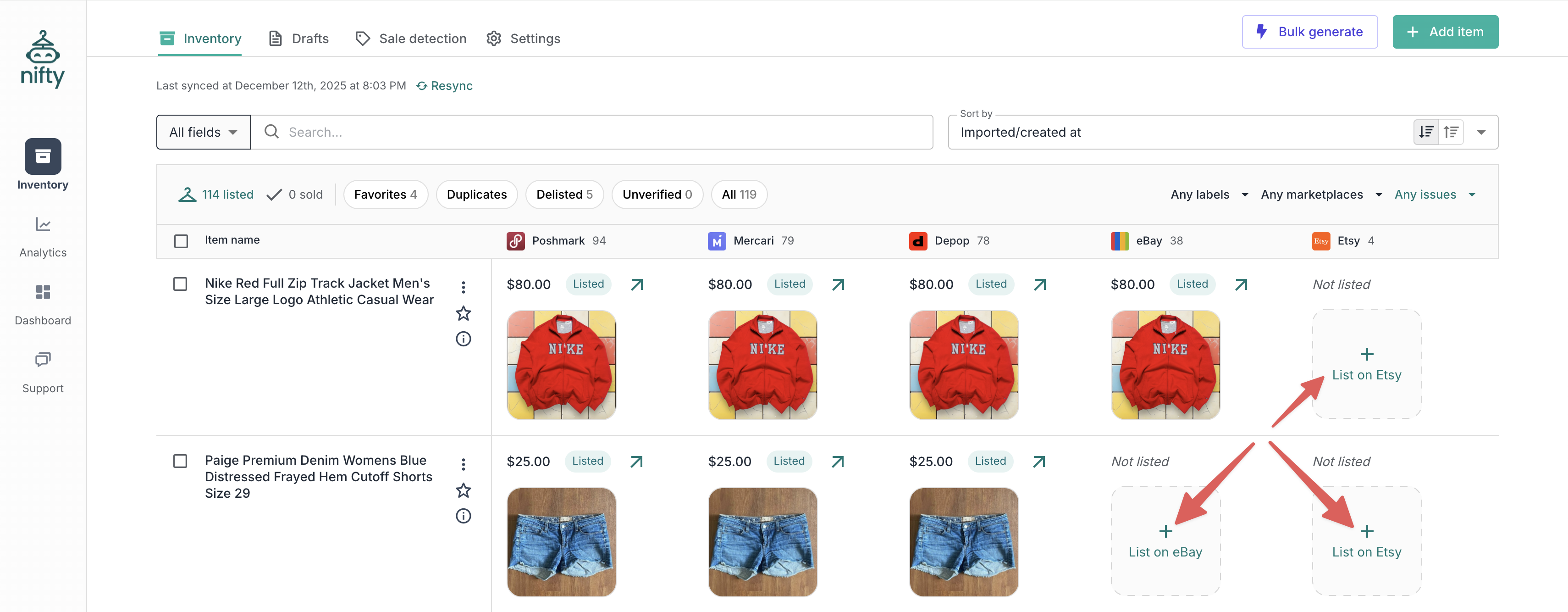
Go to the [**Inventory Manager**](/inventory-management/inventory-manager.md), find the item you want to crosslist, and click **List on Marketplace** in the empty cell for the marketplace you want to add.
{% hint style="info" %}
**Not seeing the button?** The **List on Marketplace** button only appears if you're on a plan with **Crosslisting** and you're connected to that marketplace.
{% endhint %}
### How it works
When you crosslist an existing item with **List on Marketplace**:
1. Nifty copies the existing listing data (photos, title, description, price).
2. Nifty uses AI to fill in marketplace-specific fields (category, brand, size, item specifics).
3. You review shipping details and any required fields for the new marketplace.
4. You publish to the new marketplace.
5. The new listing appears in the same row as the original — linked for [**Auto‑Delisting**](/auto-delisting/auto-delisting.md).
Everything, even the photos, is adjustable. We give you a starting point and you decide what to change.
### How to crosslist an existing item
1. In the **Inventory Manager**, locate the row for the item you want to crosslist.
2. In an empty cell for the marketplace you want to add, click **+ List on Marketplace**.
3. Review the pre-filled information from your existing listing (photos, title, description, price).
4. Check that the **Marketplace details** section has all required fields for the new marketplace, and update details if needed.
5. Click **List item** to publish to the new marketplace.
For an overview of all crosslisting workflows (including creating new items and using AI from photos), see [Crosslisting](/crosslisting/crosslisting.md).
---
# Agent Instructions
This documentation is published with GitBook. GitBook is the documentation platform designed so that both humans and AI agents can read, navigate, and reason over technical content effectively. Learn more at gitbook.com.
## Querying This Documentation
If you need additional information that is not directly available in this page, you can query the documentation dynamically by asking a question.
Perform an HTTP GET request on the current page URL with the `ask` query parameter, and the optional `goal` query parameter:
```
GET https://docs.nifty.ai/crosslisting/list-on-marketplace.md?ask=&goal=
```
`ask` is the immediate question: it should be specific, self-contained, and written in natural language.
`goal` is optional and describes the broader end goal you are ultimately trying to accomplish on behalf of the user. GitBook uses it to tailor the answer towards what is most useful for that goal.
The response will contain a direct answer to the question and relevant excerpts and sources from the documentation.
Use this mechanism when the answer is not explicitly present in the current page, you need clarification or additional context, or you want to retrieve related documentation sections.