> For the complete documentation index, see [llms.txt](https://docs.nifty.ai/llms.txt). Markdown versions of documentation pages are available by appending `.md` to page URLs; this page is available as [Markdown](https://docs.nifty.ai/auto-delisting/setup-guide.md).
# Setup Guide
**Auto-Delisting** removes sold items from your other marketplaces automatically. Here’s how to set it up.
### Where to find it
Go to Settings → [**Sale Detection**](https://app.nifty.ai/settings/sale-detection).
### Enabling Auto-Delisting
Toggle on the marketplaces where you want Nifty to automatically delist sold items.
When a single-quantity item sells, Nifty removes the item’s other marketplace listings from the platforms you've enabled.
### Enabling Auto-Adjust Quantity
Toggle on **Auto-Adjust Quantity** to keep multi-quantity items synchronized.
When one unit sells, Nifty updates the quantity on all other platforms. If the sale was on Mercari, we also relist it (since Mercari listings disappear when sold).
{% hint style="info" %}
**Note:** **Auto-Adjust Quantity** is all-or-nothing. You can't enable it for some marketplaces and not others.
{% endhint %}
### Requirements
Three things must be true for an item to be eligible:
#### 1. The feature must be turned on
This might seem obvious, but it's the most common reason auto-delisting doesn't work. Double-check that your toggles are enabled in **Inventory Settings**.
#### 2. The item must be verified
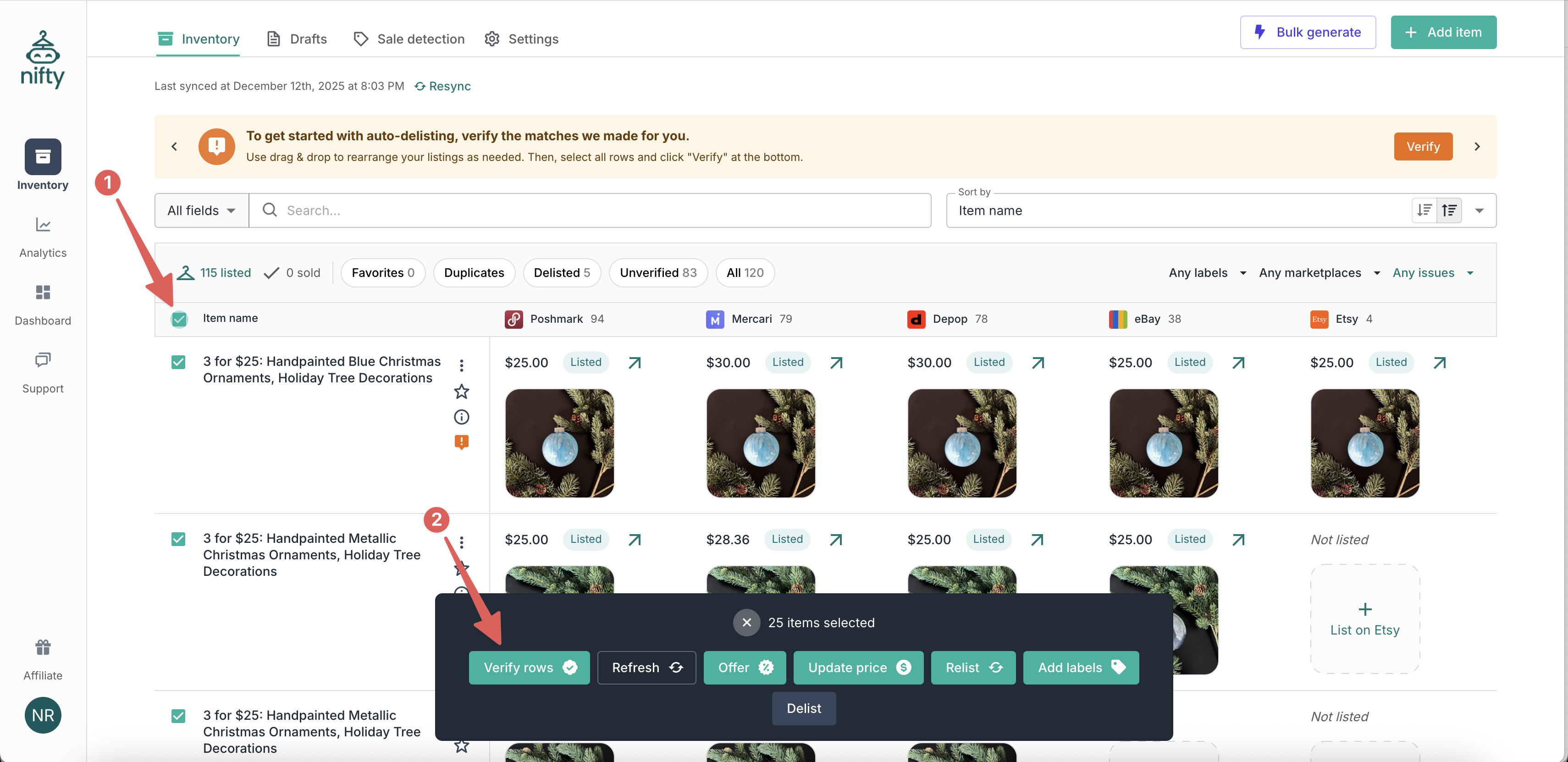
When Nifty matches your listings across platforms, the results are **Unverified** until you confirm they're correct. Only verified items are eligible for auto-delisting.
To verify items:
1. Go to [**Inventory**](https://app.nifty.ai/inventory) (in the **Inventory Manager**).
2. In the filter bar, select **Unverified**.
3. Sort by **Item name** — this groups similar titles together and makes the review process easier.
4. Review each page. If you notice anything off, drag and drop your listings into the correct row.
5. Select all rows and click **Verify** at the bottom.
{% hint style="success" %}
**Tip:** Items you create or crosslist through Nifty are automatically verified. This one-time review is only needed for inventory you imported from elsewhere.
{% endhint %}
#### 3. The item cannot have a mismatched quantity warning
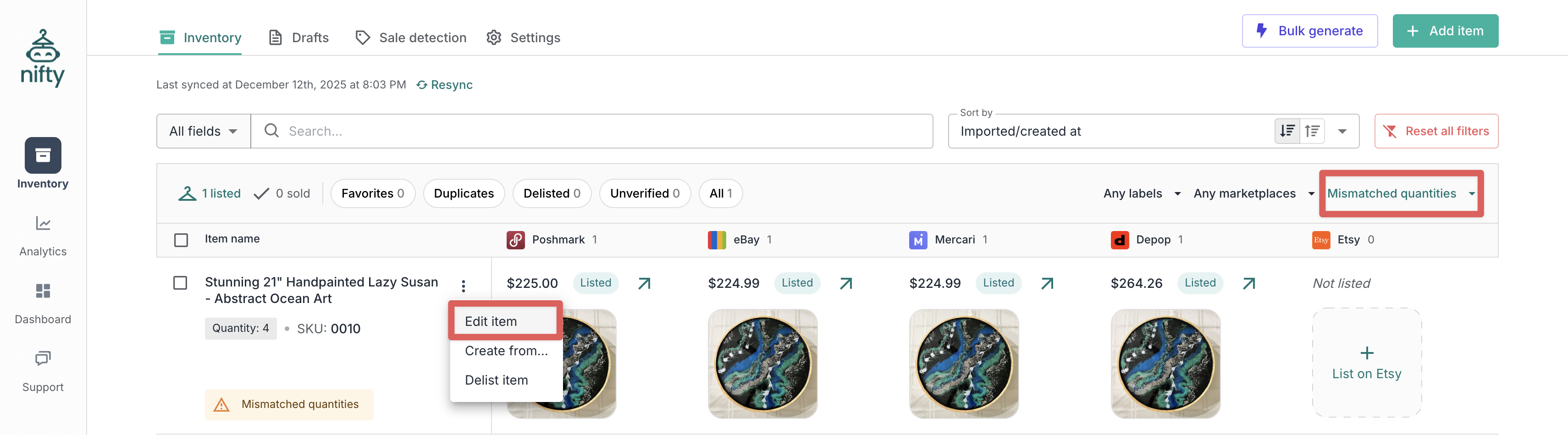
Nifty can't auto-adjust items that show a [**Mismatched Quantity**](/inventory-management/search-sort-and-filter.md#issues-filter) warning — we’re not sure what the correct quantity should be.
To fix mismatched quantities:
1. Use the **Mismatched Quantity** filter to find affected items.
2. For each one, click the **Item menu** → **Edit item**.
3. Adjust the quantity at the top of the page.
4. Click **Update item**.
{% hint style="info" %}
**Note:** Mercari doesn't count toward this warning since it always has a quantity of 1.
{% endhint %}
### After setup
Auto-delisting only catches sales going forward. For any past sales that weren't fully delisted, use the [**Partially delisted**](/inventory-management/search-sort-and-filter.md#issues-filter) filter to find and clean them up manually.
---
# Agent Instructions
This documentation is published with GitBook. GitBook is the documentation platform designed so that both humans and AI agents can read, navigate, and reason over technical content effectively. Learn more at gitbook.com.
## Querying This Documentation
If you need additional information that is not directly available in this page, you can query the documentation by asking a question.
Perform an HTTP GET request on the following URL with the `ask` and `goal` query parameters:
```
GET https://docs.nifty.ai/auto-delisting/setup-guide.md?ask=&goal=
```
`ask` is the immediate question: it should be specific, self-contained, and written in natural language.
`goal` is what the user is ultimately trying to achieve, the reason they need the answer. Sharing it helps GitBook give you a better, more relevant answer. A goal is most helpful when it describes the outcome the user wants rather than restating the question. For example, with `ask=how do I create an API token`, a goal like `automate deployments from our CI pipeline` lets GitBook tailor the answer to that use case.
The response will contain a direct answer to the question and relevant excerpts and sources from the documentation.
Use this mechanism when the answer is not explicitly present in the current page, you need clarification or additional context, or you want to retrieve related documentation sections.