> For the complete documentation index, see [llms.txt](https://docs.nifty.ai/llms.txt). Markdown versions of documentation pages are available by appending `.md` to page URLs; this page is available as [Markdown](https://docs.nifty.ai/inventory-management/organizing-your-inventory.md).
# Organizing Your Inventory
As your inventory grows, organization becomes essential. Nifty provides **Labels**, **Favorites**, and **Private Notes** to help you categorize and find items quickly.
### Where to find it
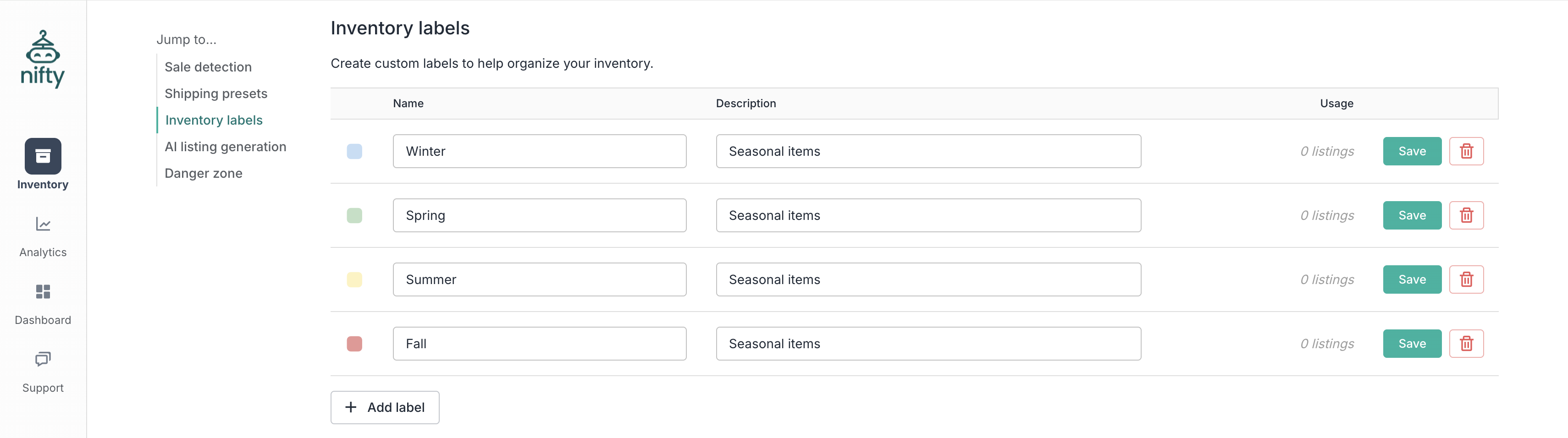
To manage **Labels**, go to Settings → [**Labels**](https://app.nifty.ai/settings/labels).
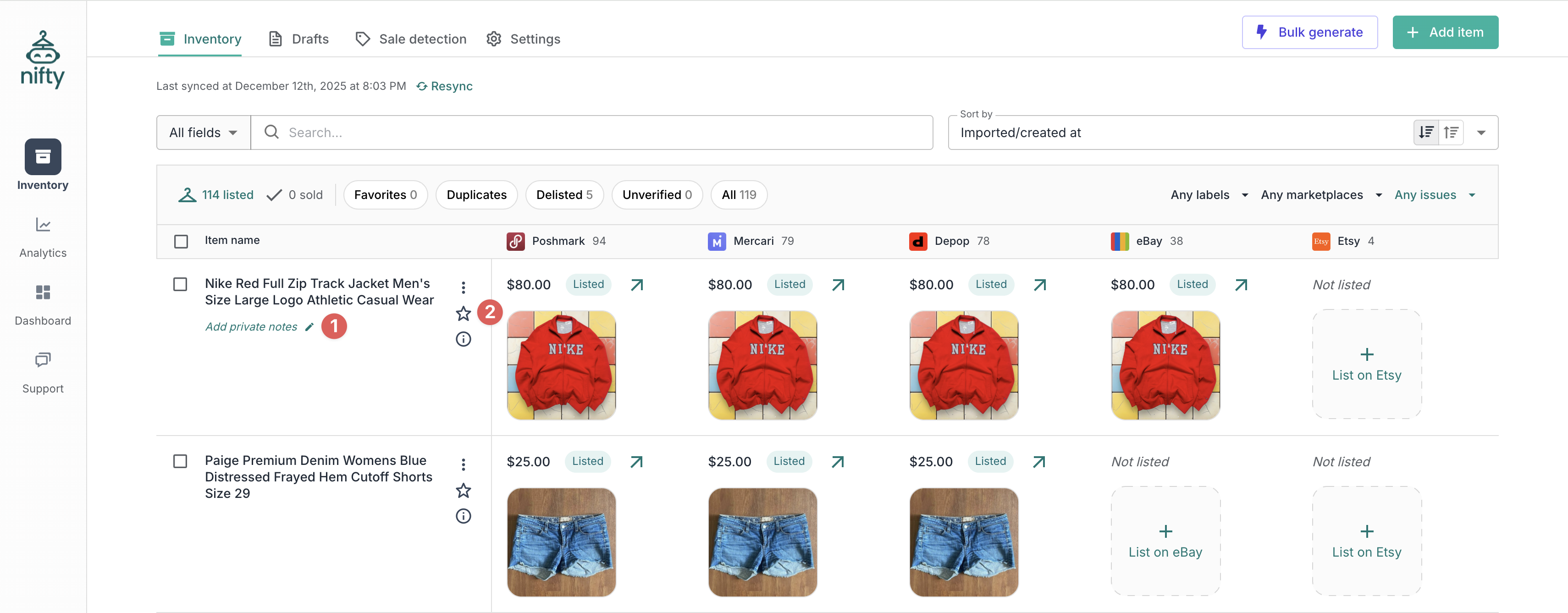
**Favorites** are managed directly within the [**Inventory Manager**](/inventory-management/inventory-manager.md).
**Private Notes** can be added from the **Inventory Manager**, or when [creating or editing an item](/crosslisting/creating-and-editing-items.md).
### Labels
**Labels** are custom tags you create to categorize items however makes sense for your business. Each label can have a custom name, description, and color.
**How to create labels:**
1. Go to **Inventory Settings**.
2. Find the **Inventory labels** section.
3. Create a new label or edit an existing one.
**How to apply labels:**
1. When creating or editing an individual listing, you can add labels using the **Inventory labels** section.
2. When viewing items in your **Inventory Manager**, you can select multiple rows and [**Bulk Apply Labels**](/inventory-management/bulk-actions.md).
{% hint style="info" %}
**Note:** Bulk apply labels will override all existing labels for the item(s).
{% endhint %}
**Example uses:**
* "Photo needed" — items that need better photos
* "Price drop" — items to discount soon
* "Holiday" — seasonal inventory
* "Source: Estate sale" — track where items came from
### Favorites
Mark items as **Favorites** to create a quick-access list of inventory.
**How to favorite an item:**
1. Find the item in your **Inventory Manager**.
2. Click the star icon to toggle favorite status.
**When to use favorites:**
* Items you frequently pick up and want to copy quickly
* Items you want to track closely
### Private Notes
**Private Notes** are short memos that you can easily attach to an item.
**How to add a private note from the Inventory Manager:**
1. Find the item in your **Inventory Manager**.
2. Click **Add private notes**.
**How to add a private note from the Listing Form:**
1. Find the **Private note** section.
2. Enter your private note.
3. Click **Update item**.
{% hint style="warning" %}
**Important:** SKUs should be put in the dedicated SKU field, rather than **Private Notes**, as the dedicated field is carried over to the [**Sale Detection Tracker**](/auto-delisting/sale-detection-tracker.md) and [**Analytics**](/analytics/analytics.md) when an item sells.
{% endhint %}
### Filtering by organization
Use the **Filter bar** in the **Inventory Manager** to show:
* Only favorites
* Only items with a specific label
And use the **Search bar** in the **Inventory Manager** to search across your private notes.
This helps you work through your inventory systematically.
### Limitations
| Limitation | Details |
| ------------------------ | ------------------------------------------ |
| Create label hierarchies | Labels are flat (no sub-labels or folders) |
---
# Agent Instructions
This documentation is published with GitBook. GitBook is the documentation platform designed so that both humans and AI agents can read, navigate, and reason over technical content effectively. Learn more at gitbook.com.
## Querying This Documentation
If you need additional information that is not directly available in this page, you can query the documentation dynamically by asking a question.
Perform an HTTP GET request on the current page URL with the `ask` query parameter, and the optional `goal` query parameter:
```
GET https://docs.nifty.ai/inventory-management/organizing-your-inventory.md?ask=&goal=
```
`ask` is the immediate question: it should be specific, self-contained, and written in natural language.
`goal` is optional and describes the broader end goal you are ultimately trying to accomplish on behalf of the user. GitBook uses it to tailor the answer towards what is most useful for that goal.
The response will contain a direct answer to the question and relevant excerpts and sources from the documentation.
Use this mechanism when the answer is not explicitly present in the current page, you need clarification or additional context, or you want to retrieve related documentation sections.
.png?alt=media)