> For the complete documentation index, see [llms.txt](https://docs.nifty.ai/llms.txt). Markdown versions of documentation pages are available by appending `.md` to page URLs; this page is available as [Markdown](https://docs.nifty.ai/inventory-management/sync-and-refresh.md).
# Sync and Refresh
Syncing keeps your [**Inventory Manager**](/inventory-management/inventory-manager.md) up to date with what's actually listed on your marketplaces.
### Where to find it
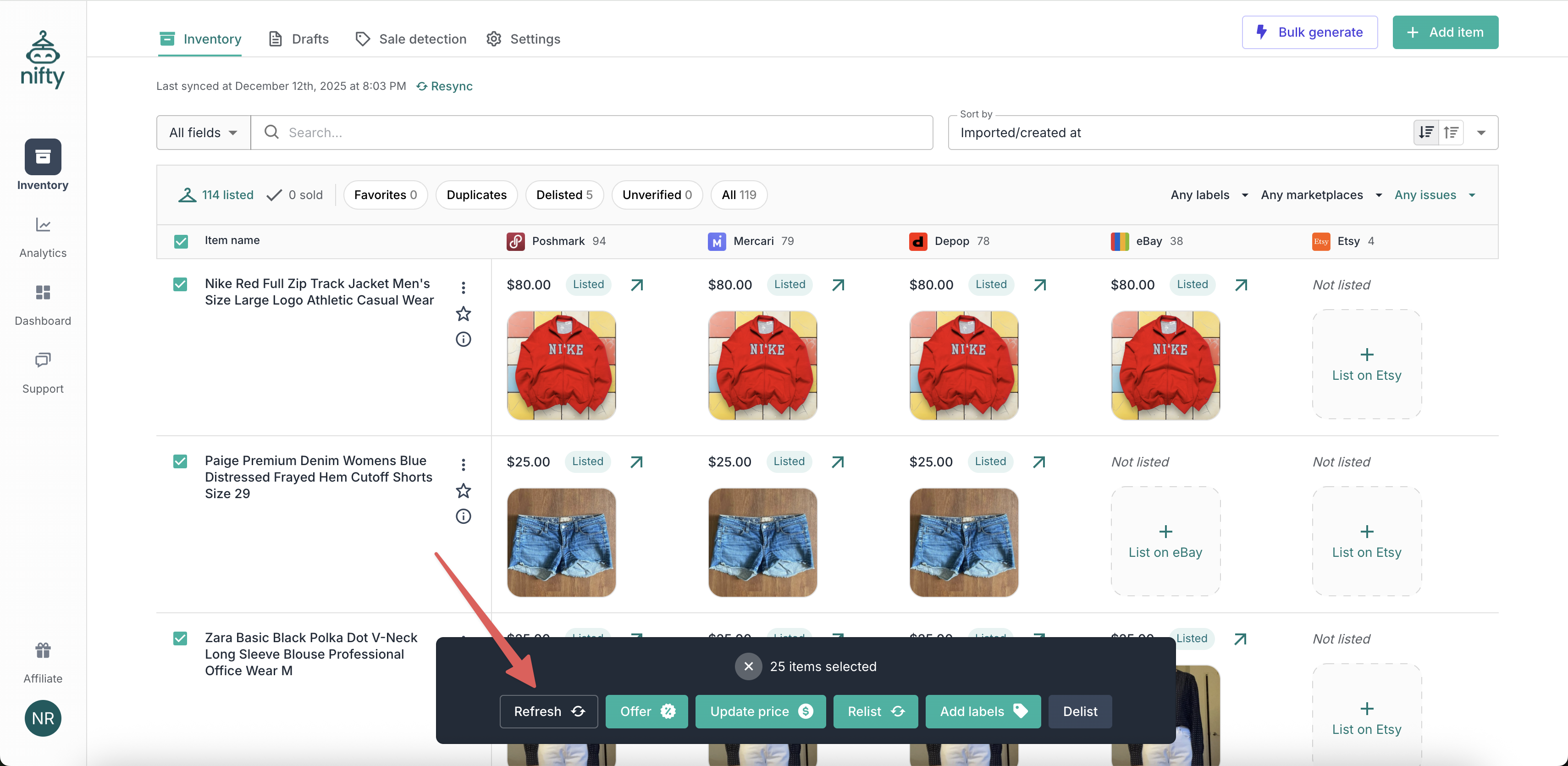
Go to [**Inventory**](https://app.nifty.ai/inventory) (in the [**Inventory Manager**](/inventory-management/inventory-manager.md)) and click **Resync** in the top-left corner.
### How syncing works
Think of Nifty as a mirror of your marketplaces. When you list, edit, or remove items directly on a marketplace (outside of Nifty), the mirror gets a little dirty — your **Inventory Manager** no longer reflects reality. Syncing wipes the mirror clean.
Nifty offers three ways to sync, depending on how much cleaning you need: **Full Sync**, **Quick Sync**, and **Refresh**.
### Full Sync
A **Full Sync** pulls in *all* active listings from every connected marketplace and refreshes everything — titles, prices, photos, and status.
**When to use it:**
* After connecting a new marketplace
* Once a month as routine maintenance
* After making bulk changes directly on a marketplace (relists, price drops, etc.)
* When listings seem out of sync with what you see on the marketplace
To run a **Full Sync**, all marketplaces with listings in your **Inventory Manager** must be connected and not in vacation mode.
{% hint style="info" %}
**Note:** A **Full Sync** does not rearrange items that are already in your **Inventory Manager**. It does, however, try to match new listings to existing items, adding them to the same row when possible. This is why it's the right choice after connecting a new marketplace.
{% endhint %}
### Quick Sync
A **Quick Sync** is a faster, lighter option. It checks for new listings you've created outside of Nifty — but it won't update data on listings Nifty already knows about.
**When to use it:**
* After listing a few new items outside of Nifty
* When your **Inventory Manager** is mostly up to date and you just need to pull in recent additions
{% hint style="warning" %}
**Important:** **Quick Sync** does not update existing listing data. Prices, statuses, and other details in Nifty will stay the same. If you need everything refreshed, use a **Full Sync**.
{% endhint %}
### Refresh (for specific items)
If just one or two items look outdated, you don't need to sync your whole inventory. Use the **Refresh** feature to pull fresh data for specific rows.
**How to use it:**
1. Select the row(s) you want to update.
2. Click **Refresh** at the bottom of the screen.
### Limitations
| Limitation | Details |
| ----------------------------- | ------------------------------------------------------------------------------------------------------------------------------------------------------------------------------------------------------ |
| Import sold listings | The **Inventory Manager** focuses on active listings. For sales history, check out [**Analytics**](/analytics/analytics.md). |
| Import auction-style listings | On eBay, auction-style listings cannot always be modified or ended without penalty, so Nifty does not interact with these types of listings. |
| Multi-variant items | Multi-variant listings can be imported into Nifty, but you can't create or edit them here, and they're not eligible for **Sale Detection** or [**Auto-Delisting**](/auto-delisting/auto-delisting.md). |
| Push changes to marketplaces | Syncing only pulls data into Nifty. It doesn't update or modify your listings on any marketplace. |
| Trigger Auto-Delisting | Syncing does not trigger **Auto-Delisting**. Auto-Delisting runs on its own schedule, not when you sync. |
### A note on timing
Changes you make directly on a marketplace need to be processed by that marketplace's systems before Nifty can see them. This is usually instant, but occasionally there's a short delay.
We recommend listing directly on Nifty whenever possible, as there's no delay between creating the listing and seeing it in Nifty.
---
# Agent Instructions
This documentation is published with GitBook. GitBook is the documentation platform designed so that both humans and AI agents can read, navigate, and reason over technical content effectively. Learn more at gitbook.com.
## Querying This Documentation
If you need additional information that is not directly available in this page, you can query the documentation dynamically by asking a question.
Perform an HTTP GET request on the current page URL with the `ask` query parameter, and the optional `goal` query parameter:
```
GET https://docs.nifty.ai/inventory-management/sync-and-refresh.md?ask=&goal=
```
`ask` is the immediate question: it should be specific, self-contained, and written in natural language.
`goal` is optional and describes the broader end goal you are ultimately trying to accomplish on behalf of the user. GitBook uses it to tailor the answer towards what is most useful for that goal.
The response will contain a direct answer to the question and relevant excerpts and sources from the documentation.
Use this mechanism when the answer is not explicitly present in the current page, you need clarification or additional context, or you want to retrieve related documentation sections.
.png?alt=media)